<?xml-stylesheet type="text/xsl" href="mathml.xsl"?>
<html xmlns="http://www.w3.org/1999/xhtml">
<!--        This document was created  with

            S O F T 4 S C I E N C E      S c i W r i t e r   

            http://www.soft4science.com     e-mail: info@soft4science.com
-->
  <head>
    <meta http-equiv="Content-Type" content="text/html; charset=utf-8" />
    <meta name="Generator" content="soft4science SciWriter" />
    <meta name="Style-ParagraphMargins" content="&lt;ParagraphMargins p_bottom=&quot;1&quot; p_top=&quot;1&quot; /&gt;" />
    <meta name="Style-Headings" content="&lt;Headings fontSize_H2=&quot;140&quot; /&gt;" />
    <meta name="Style-GeneralText" content="&lt;GeneralText textIndent=&quot;0&quot; /&gt;" />
    <meta name="PreferedMathMLRenderer" content="mathplayer_dl" />
    <meta name="template" content="X_Times.tpl" />
    <meta name="guid" content="b6457e27-3d42-4b2c-b608-44fbeee9aa90" />
    <meta name="date_lastUpdated" content="2008-05-06T11:47:05" />
    <meta name="date_created" content="2008-04-10T11:49:14" />
    <meta name="SciWriter-Options" content="&lt;SciWriterOptions TextWidth=&quot;970&quot; ShowRuler=&quot;True&quot; /&gt;" />
    <meta name="SciWriter-Version" content="3.0.2.0" />
    <title>unknown</title>
    <style type="text/css"><![CDATA[
    /* - CSS code generated by soft4science SciWriter  -*/

    body{font-size:14.25pt}
    table{font-size:14.25pt}
    a:link,a:active,a:visited{color:blue}
    img{border-width:0px}
    p,li,td,caption, blockquote{font-family:"Times New Roman",times}
    p{text-indent:0em}
    h1,h2,h3,h4,h5,h6{font-family:"Times New Roman",times;color:#4682B4}
    p{margin-top:1em;margin-bottom:1em}
    li{margin-top:1em;margin-bottom:1em}
    h1{font-size:160%;margin-top:1.5em;margin-bottom:1.5em}
    h2{font-size:140%;margin-top:1.5em;margin-bottom:1.5em}
    h3{font-size:140%;margin-top:1.5em;margin-bottom:1.5em}
    h4{font-size:130%;margin-top:1.5em;margin-bottom:1.5em}
    h5{font-size:120%;margin-top:1.5em;margin-bottom:1.5em}
    h6{font-size:110%;margin-top:1.5em;margin-bottom:1.5em}
    table{margin-top:1em;margin-bottom:1em}
    pre{margin-top:1em;margin-bottom:1em}
    hr{margin-top:1em;margin-bottom:1em}
    ul,ol{margin-top:0em;margin-bottom:0em}

    math          {font-family:"Times New Roman",times,CMSY10, CMEX10, Symbol}
    mml\:math    {font-family:"Times New Roman",times,CMSY10, CMEX10, Symbol}
    math[display="block"]{display:block;text-align:center;font-style: normal;}
    math *.[mathvariant="normal"] {font-weight: normal;font-style: normal;}
    math *.[mathvariant="bold"]   {font-weight: bold;font-style: normal;}
    math *.[mathvariant="italic"] {font-weight: normal;font-style: italic;}
    math *.[mathvariant="bold-italic"] {font-weight: bold;font-style: italic;}
    math *.[mathvariant="double-struck"]{font-family:msbm;font-weight: normal;font-style: normal;}
    math *.[mathvariant="script"]{font-family: eusb;font-weight: normal;font-style: normal;}
    math *.[mathvariant="bold-script"]{font-family: eusb;font-weight: bold;font-style: normal;}
    math *.[mathvariant="fraktur"] {font-family: eufm;font-weight: normal;font-style: normal;}
    math *.[mathvariant="bold-fraktur"] {font-family: eufm;font-weight: bold;font-style: italic;}
    math *.[mathvariant="sans-serif}"] {font-family: sans-serif,Arial,Lucida Sans Unicode, Verdana;font-weight: normal;font-style: normal;}
    math *.[mathvariant="bold-sans-serif"] {font-family: sans-serif,Arial, Lucida Sans Unicode, Verdana;font-weight: bold;font-style: normal;}
    math *.[mathvariant="sans-serif-italic"]{font-family: sans-serif,Arial, Lucida Sans Unicode, Verdana;font-weight: normal;font-style: italic;}
    math *.[mathvariant="sans-serif-bold-italic"] { font-family: sans-serif,Arial, Lucida Sans Unicode, Verdana ;font-weight: bold;font-style: italic;}
    math *.[mathvariant="monospace"] {font-family: monospace};
    math *.[mathsize="small"] {font-size: 80%};
    math *.[mathsize="big"] {font-size: 125%};
    msub>*:first-child[mathsize="big"],msup>*:first-child[mathsize="big"],msubsup>*:first-child[mathsize="big"],munder>*:first-child[mathsize="big"],mover>*:first-child[mathsize="big"],munderover>*:first-child[mathsize="big"],mmultiscripts>*:first-child[mathsize="big"],mroot>*:first-child[mathsize="big"] {font-size: 125%}
    msub>*:first-child[mathsize="small"],msup>*:first-child[mathsize="small"],msubsup>*:first-child[mathsize="small"],munder>*:first-child[mathsize="small"],mover>*:first-child[mathsize="small"],munderover>*:first-child[mathsize="small"],mmultiscripts>*:first-child[mathsize="small"],mroot>*:first-child[mathsize="small"] {  font-size: 80%}
    msub>*:first-child,msup>*:first-child,msubsup>*:first-child,munder>*:first-child,mover>*:first-child,munderover>*:first-child,mmultiscripts>*:first-child,mroot>*:first-child {  font-size: 100%}
    msub>*[mathsize="big"],msup>*[mathsize="big"],msubsup>*[mathsize="big"],munder>*[mathsize="big"],mover>*[mathsize="big"],munderover>*[mathsize="big"],mmultiscripts>*[mathsize="big"],math[display="inline"] mfrac>*[mathsize="big"],math *[scriptlevel="+1"][mathsize="big"] {  font-size: 89%  /* (.71 times 1.25) */}
    msub>* [mathsize="small"],msup>*[mathsize="small"],msubsup>*[mathsize="small"],munder>*[mathsize="small"],mover>*[mathsize="small"],munderover>*[mathsize="small"],mmultiscripts>*[mathsize="small"],math[display="inline"] mfrac>*[mathsize="small"],math *[scriptlevel="+1"][mathsize="small"] {  font-size: 57% /* (.71 times .80) */}
    msub>*,msup>*,msubsup>*,munder>*,mover>*,munderover>*,mmultiscripts>*,math[display="inline"] mfrac>*,math *[scriptlevel="+1"] {  font-size: 71%}
    mroot>*[mathsize="big"] {  font-size: 62%  /* (.50 times 1.25) */}
    mroot>*[mathsize="small"] {  font-size: 40% /* (.50 times .80) */}
    mroot>* {  font-size: 50%}
    .s4s-table-right{text-align:right}
    .s4s-table-right table{margin-left:auto;margin-right:0;text-align:left;}
    .s4s-table-right caption{margin-left:auto;margin-right:auto;text-align:center;}
    .s4s-table-center{text-align:center;}
    .s4s-table-center table{margin-left:auto;margin-right:auto;text-align:left;}
    .s4s-table-center caption{margin-left:auto;margin-right:auto;text-align:center;}
    .s4s-empty-paragraph{height:1em;width:textwidth}
    .s4s-noindent{text-indent:0em}
    .s4s-citation          {text-decoration:none}
    .s4s-footnote          {text-decoration:none;position:relative;top:-0.2em;font-size:0.9em}
    .s4s-section-reference {text-decoration:none}
    .s4s-theorem-reference {text-decoration:none}
    .s4s-table-reference   {text-decoration:none}
    .s4s-figure-reference  {text-decoration:none}
    .s4s-equation-reference{text-decoration:none}
    .s4s-latex             {visibility:hidden;line-height:0em;height:0em;width:0em;display:none}

    /* - CSS code generated by soft4science SciWriter  -*/
]]></style>
  </head>
  <body style="margin-left:50px;margin-right:50px;margin-top:50px;margin-bottom:50px">
    <table class="s4s-figure">
      <tbody>
        <tr>
          <td align="center">
            <img alt="log7" src="Student_Book_Matlab2_files/log7.gif" />
          </td>
        </tr>
      </tbody>
    </table>
    <p style="text-align:center" class="s4s-noindent">
      <span style="font-size:200%">
        <strong>Writing M-Files in MATLAB</strong>
      </span>
    </p>
    <p class="s4s-empty-paragraph"> </p>
    <h1 class="s4s-section-numbered" id="SECTION.0cff5ca2-e798-4872-9f27-ef38c81215d3">
      <span class="s4s-section-number">1 </span>What is an M-File?</h1>
    <p class="s4s-noindent">Although MATLAB <i>can</i> be used as a very sophisticated calculator, 
its true power lies in its ability to read and execute files written by the user. 
These are called <b>M-Files,</b> and have a file extension <span style="font-family:Tahoma"> .m </span>. 
It is good practice to write commands directly into an M-File, and save this to a suitable directory. If an error is made, it is much easier to edit the file than to keep scrolling 
through various commands, and additionally, an M-File can be saved then subsequently retrieved at a later date. 
There are two fundamentally different types of M-File, the <b>script </b>file and the <b>function </b>file. A script file contains a sequence of MATLAB commands which are executed when the name of the
 file is entered into the command window. A function file requires an input, which it then processes and returns as output. MATLAB contains an enormous number of inbuilt function files. 
These range from the elementary (e.g. <span style="font-family:Tahoma">'sin'</span>, <span style="font-family:Tahoma">'exp'</span>) to a large number of specialist functions. 
All function files are characterised by their ability to take an input from the command line and return an output to the command window without the requirement for editing the function file. 
A simple example of a function file is given by the exponential function i.e. <math xmlns="http://www.w3.org/1998/Math/MathML"><mi>exp</mi>
<mo stretchy="false">(</mo><mi>x</mi><mo stretchy="false">)</mo><mo>=</mo><msup><mrow><mi>e</mi></mrow><mrow><mi>x</mi></mrow></msup></math>. 
Enter</p>
    <p>
      <span style="font-family:Tahoma">y=exp(1)</span>
    </p>
    <p>giving the output</p>
    <p>
      <span style="font-family:Tahoma">y=2.7183</span>
    </p>
    <p>Entering</p>
    <p>
      <span style="font-family:Tahoma">y=exp(0)</span>
    </p>
    <p>gives the output </p>
    <p>
      <span style="font-family:Tahoma">y=1</span>
    </p>
    <p class="s4s-empty-paragraph"> </p>
    <h1 class="s4s-section-numbered" id="SECTION.cf3de7fa-d25d-48e8-bf10-33449ccc77be">
      <span class="s4s-section-number">2 </span>How to create and use an M-File</h1>
    <h2 class="s4s-section-numbered" id="SECTION.89fb4423-4bd0-43c1-a519-734393cc3879">
      <span class="s4s-section-number">2.1 </span>Creating a personal folder </h2>
    <p class="s4s-noindent">First you will need to create a folder in which to deposit your M-File. Find a suitable directory from the "Current Directory" drop down 
box at the top of the MATLAB window. In the Current Directory window (top left), press the "New Folder" button (shown as a sparkling yellow folder). 
Give the new folder a suitable name e.g. "MyWork". </p>
    <h2 class="s4s-section-numbered" id="SECTION.7146c606-668a-4db4-944d-e0b0e8898616">
      <span class="s4s-section-number">2.2 </span>Creating an M-file</h2>
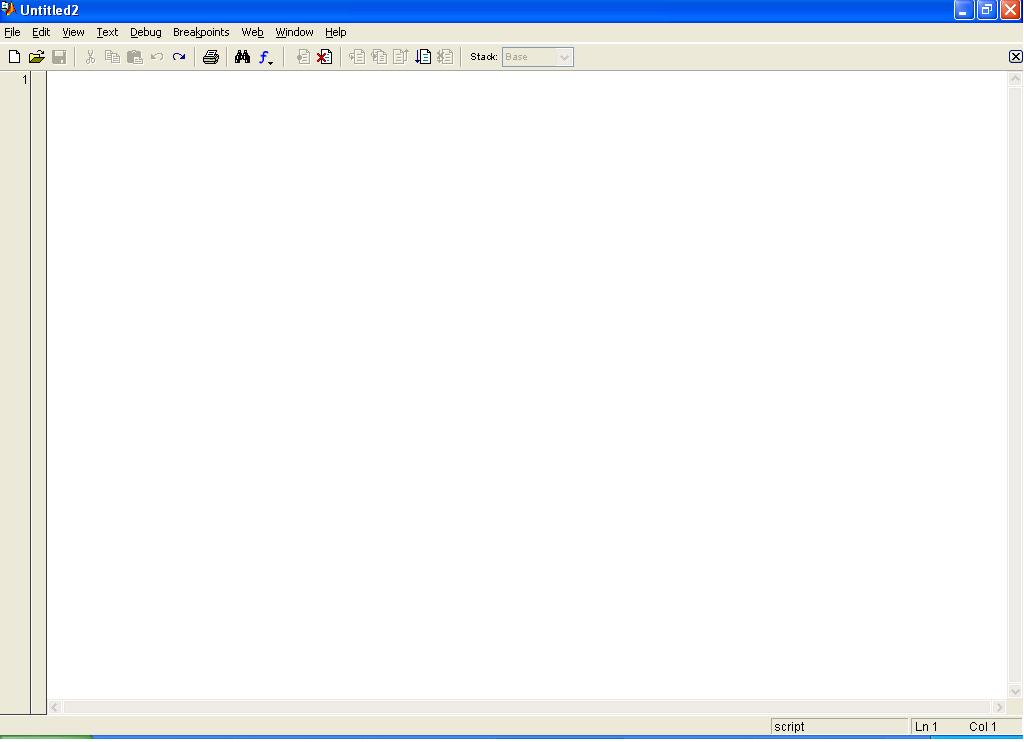
    <p class="s4s-noindent">The fastest way to create an M-File is to click on the "New M-File" button situated at the top left-hand corner of the MATLAB 
screen, underneath the "File" button. Alternatively, pressing "File - New - M-File" gives the same result. This produces a window similar to the one shown here:</p>
    <div class="s4s-table-center">
      <table class="s4s-figure">
        <tbody>
          <tr>
            <td align="center">
              <img alt="MATLAB11" src="Student_Book_Matlab2_files/MATLAB11.JPG" width="50%" />
            </td>
          </tr>
        </tbody>
      </table>
    </div>
    <p class="s4s-noindent">As a simple example, open an M-File in MATLAB, then save the M-File as a name of your choice, say, <span style="font-family:Tahoma">"MAT1.m</span>", 
to the folder you have just created. It is good practice to make sure that you do not attempt to duplicate the name of an existing M-File! An easy way to check is by entering the command</p>
    <p>
      <span style="font-family:Tahoma">help MAT1</span>
    </p>
    <p>at the command line window. This returns </p>
    <p>
      <span style="font-family:Tahoma">MAT1.m not found.</span>
    </p>
    <p>Contrast this with the command</p>
    <p>
      <span style="font-family:Tahoma">help sin</span>
    </p>
    <p>This returns</p>
    <p>
      <span style="font-family:Tahoma">SIN Sine.</span>
    </p>
    <p>
      <span style="font-family:Tahoma">SIN(X) is the sine of the elements of X.</span>
    </p>
    <p>
      <span style="font-family:Tahoma">Overloaded methods</span>
    </p>
    <p>
      <span style="font-family:Tahoma">help sym/sin.m</span>
    </p>
    <p>indicating that there is already in existence an M-File called <span style="font-family:Tahoma">"sin.m".</span></p>
    <h2 class="s4s-section-numbered" id="SECTION.a5da8a8c-bf68-417a-b968-889a200fd13f">
      <span class="s4s-section-number">2.3 </span>Creating a script file</h2>
    <p class="s4s-noindent">We will create a very simple script file to perform the addition of two numbers. At line 1 of your newly created file, input </p>
    <p>
      <span style="font-family:Tahoma">y=3+2</span>
    </p>
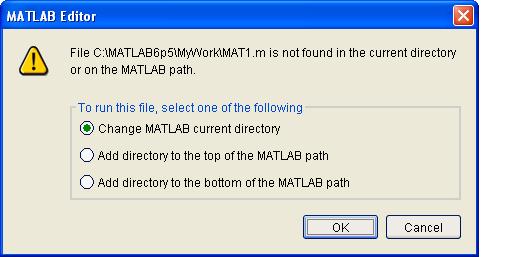
    <p>(note that <span style="font-family:Tahoma">";"</span> is not inserted, otherwise we cannot view the output) then press "File - Save As" and save the file as 
<span style="font-family:Tahoma">MAT1</span> to your folder. Press the "Debug - Run" button. You should see this:</p>
    <p class="s4s-empty-paragraph"> </p>
    <div class="s4s-table-center">
      <table class="s4s-figure">
        <tbody>
          <tr>
            <td align="center">
              <img alt="MATLAB12" src="Student_Book_Matlab2_files/MATLAB122.JPG" />
            </td>
          </tr>
        </tbody>
      </table>
    </div>
    <p class="s4s-noindent">Pressing the "OK" button allows your folder to be recognised by MATLAB. If you now enter the command</p>
    <p>
      <span style="font-family:Tahoma">MAT1</span>
    </p>
    <p>in your Command Window, you will receive the output</p>
    <p>
      <span style="font-family:Tahoma">y=5</span>
    </p>
    <p>which is what we would hope. If you instead see</p>
    <p>
      <span style="font-family:Tahoma">??? Undefined function or variable 'MAT1'.</span>
    </p>
    <p>this means that you failed to press the "OK" button in the MATLAB Editor window. </p>
    <p>If any changes need to be made to the input, the file has to been opened and edited. For example, if we want to change <span style="font-family:Tahoma">MAT1 </span>to calculate <span style="font-family:Tahoma">3+3</span>, the file content must be changed to </p>
    <p>
      <span style="font-family:Tahoma">y=3+3</span>
    </p>
    <p>followed by saving the file. Entering <span style="font-family:Tahoma">MAT1 </span>in the command window now gives us the response</p>
    <p>
      <span style="font-family:Tahoma">y=6</span>
    </p>
    <p>It is good practice to enter a few comments into each M-file explaining what the file actually does. These are generally entered at the top of the file.
 It is easy enough to edit your file, simply by clicking on the top left hand point, then, by pressing <math xmlns="http://www.w3.org/1998/Math/MathML"><mo>[</mo></math> the first line of code is moved to the next line. Each line of comments must commence with a "%". This tells MATLAB to ignore the line and look for the next line of code which does not commence with "%". In the first line of your M-file, insert the comment</p>
    <p>
      <span style="color:Green;font-family:Tahoma">%MAT1 - Calculates the sum of two numbers</span>
    </p>
    <p>Note that MATLAB automatically changes the font colour to green. This is to facilitate easy visual debugging. If we run the file, we get the same answer as before. If, however, you have forgotten to start the first line with "%", MATLAB gives the response</p>
    <p>
      <span style="color:Red;font-family:Tahoma">??? Error: File: add.m Line: 2 Column: 18</span>
    </p>
    <p>
      <span style="color:Red;font-family:Tahoma">Unexpected MATLAB expression</span>
      <span style="color:Red">.</span>
    </p>
    <p>and does not carry out the computation. </p>
    <h2 class="s4s-section-numbered" id="SECTION.9ed3ce2b-8e10-4dc1-adcb-f2d79315ea31">
      <span class="s4s-section-number">2.4 </span>Creating a function file</h2>
    <p class="s4s-noindent">By contrast, we will now create a function file to add two numbers. Open another M-File. Save this as <span style="font-family:Tahoma">add </span>to your folder (N.B. an existing M-File called <span style="font-family:Tahoma">'add'</span> does not exist!). Now enter the following:</p>
    <p>
      <span style="font-family:Tahoma">function [out] = add(x,y)</span>
    </p>
    <p>
      <span style="color:Green;font-family:Tahoma">%ADD - Calculates the sum of two numbers</span>
    </p>
    <p>
      <span style="font-family:Tahoma">out=x+y;</span>
    </p>
    <p>and save the file. Notice the convention of placing <span style="font-family:Tahoma">"function [out] = add(x,y)" </span>on the first line, followed by the comment on the second line. Now enter </p>
    <p>
      <span style="font-family:Tahoma">add(2,3)</span>
    </p>
    <p>This gives the output</p>
    <p>
      <span style="font-family:Tahoma">ans=5</span>
    </p>
    <p>You can assign the output to a name (<span style="font-family:Tahoma">'y'</span>, say) by entering </p>
    <p>
      <span style="font-family:Tahoma">y=add(2,3)</span>
    </p>
    <p>giving the response </p>
    <p>
      <span style="font-family:Tahoma">y=5</span>
    </p>
      </body>
</html>